
Our Short List of 3
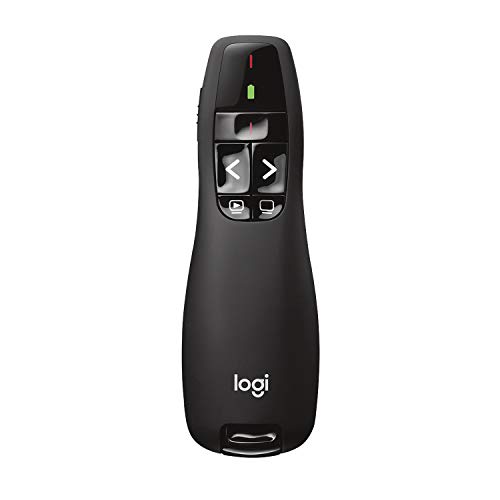
- Best for: A simple, reliable clicker for everyday talks.
- 2.4 GHz wireless connection with stowable USB-A receiver
- Red laser pointer
- Wireless range: 15 m (50 ft)
- Intuitive slideshow controls with 6 buttons

- Best for: Highlighting details on screen during a talk.
- Bluetooth and USB receiver connectivity
- Wireless range: 30 m
- Advanced digital highlighting with spotlight and magnify modes
- Laser pointer
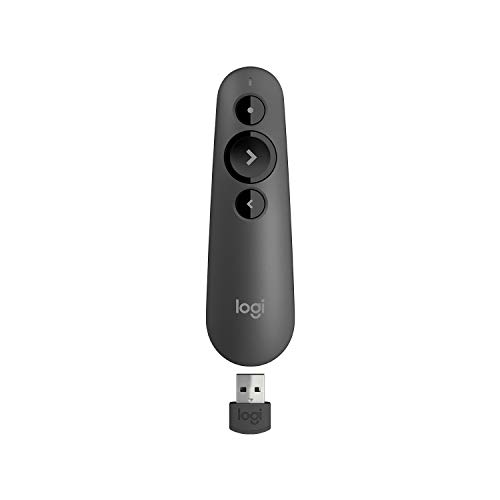
- Best for: Presenting from a MacBook or a Windows laptop.
- Dual connectivity: Bluetooth or USB receiver
- Wireless range: 20 m (65 ft)
- Red laser pointer
- Works with Mac, Windows, iOS, and Android
All 4 Picks at a Glance
| Product | Specs | Action |
|---|---|---|
| Logitech Wireless Presenter R400 |
| Check price on Amazon |
| Logitech Spotlight Presentation Remote |
| Check price on Amazon |
| Logitech R500s Laser Presentation Remote |
| Check price on Amazon |
 Logitech Wireless Presenter R800 |
| Check price on Amazon |
Key takeaways
- Compare the 5 best wireless presentation clickers by range, laser colour and timer features, then pick the remote that fits your room and your talks.
A presentation lives or dies on how freely the speaker moves. Standing behind a laptop to tap the arrow key keeps you tied to the desk, breaks eye contact, and makes every slide change feel like an interruption. A wireless clicker puts slide control in your hand, so you can walk the room, point at the screen, and keep the audience focused on you instead of on the laptop. The real decision is which remote fits your room size, your laptop, and the way you present.
This guide is for teachers, trainers, salespeople, and anyone who presents in meeting rooms, classrooms, and conference halls and wants to move while they talk. Each clicker below was chosen from the name and specifications on its Amazon listing, so the ranges, laser colours, connections, and battery details come straight from the product page rather than from guesswork.
Quick Picks
As an Amazon Associate we earn from qualifying purchases
| Product | Best for | Key spec from title |
|---|---|---|
| Logitech Wireless Presenter R400 | A simple, reliable clicker for everyday talks | USB-A clicker, red laser, 15 m range |
| Logitech Spotlight Presentation Remote | Highlighting details on screen during a talk | Bluetooth, 30 m range, digital highlighting |
| Logitech R500s Laser Presentation Remote | Presenting from a MacBook or a Windows laptop | Dual Bluetooth or USB, 20 m range, red laser |
| DinoFire Presentation Clicker DR100L | Long-range control in a large room | 100 ft range, 2.4 GHz, red laser |
| Logitech Wireless Presenter R800 | Timed talks in a large, bright hall | Green laser, 100 ft range, LCD timer |
How to Choose
Match the Range to the Room You Present In
Range decides how far you can walk from the laptop while still changing slides, and it should match the largest room you present in rather than the smallest. A 15-metre range covers a classroom or a meeting room with ease, while a 30-metre range suits a conference hall or an auditorium where the speaker walks the aisles. Walls, people, and other wireless gear can shorten the real working distance, so treat the listed figure as a maximum rather than a promise. If you present in different venues, pick the longest range you can justify, since a clicker that works in a hall also works in a small room.
Pick a Laser Colour the Whole Room Can See
A laser pointer is only useful when the whole room can follow the dot, and colour makes a bigger difference than most buyers expect. A red laser is the standard choice and shows up well on white projection screens in dim rooms, which covers most classrooms and meeting rooms. A green laser appears several times brighter to the human eye, so it stays visible on LCD and plasma screens and in brightly lit halls where a red dot washes out. For large, bright venues, green is the safer pick, while red is fine for smaller rooms and costs less. Some remotes skip the physical laser entirely and highlight digitally instead.
Check the Connection Against Your Laptop Ports
A clicker is only plug and play when its receiver fits the laptop in front of you, so check the ports before ordering. Most clickers ship with a small USB-A receiver that plugs into a standard laptop port and needs no software, which suits older laptops and shared classroom machines. Newer laptops with only USB-C ports need an adapter for that receiver, or a clicker that connects over Bluetooth instead. Bluetooth models also pair with tablets and phones, which helps when the slides run from a mobile device. Confirm the listing names your operating system too, since some remotes officially support Windows only.
Decide Whether a Timer and Vibration Alerts Matter
A built-in timer turns a clicker into a time manager, which matters when a talk has a strict limit and no clock on the wall. Remotes with an LCD display show the remaining time at a glance, and vibration alerts warn you silently at set intervals, such as five minutes before the end, without distracting the audience. If you present short talks in small rooms, a timer adds little and a simpler remote does the job. For conference talks, lectures, and sales pitches with a hard stop, a timer and silent alerts are worth paying for, since running over time is the easiest way to lose a room.
The 5 Best Options
Logitech Wireless Presenter R400
- Best for: A simple, reliable clicker for everyday talks.
- 2.4 GHz wireless connection with stowable USB-A receiver
- Red laser pointer
- Wireless range: 15 m (50 ft)
- Intuitive slideshow controls with 6 buttons
A simple, reliable clicker for everyday talks.
It uses a USB-A receiver, so a laptop with only USB-C ports needs an adapter before the clicker will connect.
The Logitech R400 suits anyone who wants a clicker that simply works, with no software to install and no settings to learn. Its 2.4 GHz USB receiver plugs into a laptop and runs at once, the six-button layout puts next, previous, and laser controls under the thumb, and the red laser pointer highlights charts and bullet points on a projection screen. A 15-metre range covers classrooms and meeting rooms, the battery indicator warns before the power runs out, and the receiver stores inside the remote so it never gets lost in a bag.
Watch out for: It uses a USB-A receiver, so a laptop with only USB-C ports needs an adapter before the clicker will connect.
Logitech Spotlight Presentation Remote
- Best for: Highlighting details on screen during a talk.
- Bluetooth and USB receiver connectivity
- Wireless range: 30 m
- Advanced digital highlighting with spotlight and magnify modes
- Laser pointer
Highlighting details on screen during a talk.
The advanced highlighting features need the Logitech software installed, so set it up before the talk rather than in the room.
The Logitech Spotlight suits presenters who work on modern screens where a physical laser dot is hard to see, because it highlights digitally instead of relying on light alone. Its spotlight mode dims the rest of the slide and draws the audience to one area, while magnify zooms into a detail without touching the laptop. Bluetooth and a USB receiver give two ways to connect, the 30-metre range covers large halls, and quick charging means a short charge before a talk is enough for the session. It is the most capable remote here for speakers who present over video calls as well as in person.
Watch out for: The advanced highlighting features need the Logitech software installed, so set it up before the talk rather than in the room.
Logitech R500s Laser Presentation Remote
- Best for: Presenting from a MacBook or a Windows laptop.
- Dual connectivity: Bluetooth or USB receiver
- Wireless range: 20 m (65 ft)
- Red laser pointer
- Works with Mac, Windows, iOS, and Android
Presenting from a MacBook or a Windows laptop.
The app features need a download and a quick setup, so install it before the first talk rather than relying on the basic buttons alone.
The Logitech R500s suits presenters who switch between a MacBook and a Windows laptop, because it officially supports both and connects over Bluetooth or its USB receiver. Its 20-metre range covers most meeting rooms and lecture halls, the red laser pointer highlights key points on a projection screen, and the three-button layout keeps slide control simple enough to use without looking down. The Logitech Presentation app adds a timer, a blank-screen button, and custom shortcuts for speakers who want more control, while the slim shape slips into a laptop bag or a jacket pocket.
Watch out for: The app features need a download and a quick setup, so install it before the first talk rather than relying on the basic buttons alone.
DinoFire Presentation Clicker DR100L
The DinoFire DR100L suits speakers who present in large rooms on a modest setup, because its 100-foot range is the longest among the simple clickers here. Its 2.4 GHz USB receiver plugs into a laptop and works at once, the red laser pointer highlights slides from the back of the room, and the pen-sized body fits a pocket or a bag without adding bulk. It handles PowerPoint, Keynote, and other common slide software, so teachers, trainers, and community speakers can use the same remote across different venues and different laptops without changing anything.
Specs
- 2.4 GHz wireless connection with USB receiver
- Red laser pointer
- Wireless range: 100 ft
- Plug and play, no software needed
- Works with PowerPoint, Keynote, and other slide software
- Works with Mac, Windows, and Chromebooks
Best for: Long-range control in a large room.
Watch out for: It has no timer, no vibration alerts, and no Bluetooth, so it suits straightforward slide changes rather than timed conference talks.
Logitech Wireless Presenter R800
- Best for: Timed talks in a large, bright hall.
- Green laser pointer
- Wireless range: 100 ft (30 m)
- LCD display with timer and battery indicator
- Silent vibration alerts at 5, 2, and 0 minutes
Timed talks in a large, bright hall.
It officially supports Windows only, so Mac users should expect extra setup or choose a different remote from this guide.
The Logitech R800 suits conference speakers and lecturers who present in large, bright halls and must finish on time. Its green laser stays visible on LCD and plasma screens and across a brightly lit room where a red dot would wash out, and the 100-foot range lets the speaker walk the aisles. The built-in LCD display shows the remaining time and the battery level, while silent vibration alerts warn at five, two, and zero minutes without the audience noticing. A reception indicator shows the signal strength before the speaker wanders out of range.
Watch out for: It officially supports Windows only, so Mac users should expect extra setup or choose a different remote from this guide.
Which One Fits Your Situation
You Present in a Small Meeting Room or Classroom
Pick the Logitech Wireless Presenter R400, because its 15-metre range and red laser cover a small room with ease, and the plug-and-play USB receiver works on shared machines without installing anything. The battery indicator warns before a talk, and the receiver stores inside the remote. It is the simplest remote in this guide, and a small room is exactly where simple wins.
You Present in a Large Hall With Bright Lights
Pick the Logitech Wireless Presenter R800, because its green laser stays visible on bright screens and across a large room, and its 100-foot range lets you walk the aisles. The LCD timer and silent vibration alerts keep a timed talk on schedule without a wall clock. Just confirm you present from a Windows laptop, since Mac support needs extra work.
You Present From a MacBook With Only USB-C Ports
Pick the Logitech R500s Laser Presentation Remote, because it connects over Bluetooth when no USB-A port is free, and it officially supports Mac as well as Windows. Its 20-metre range covers most lecture halls, and the app adds a timer and custom shortcuts. Carry the USB receiver as a backup for venues where Bluetooth pairing is slow or blocked.
You Present Online and Need More Than Slide Changes
Pick the Logitech Spotlight Presentation Remote, because its digital highlighting and magnify modes work on screen-shared slides where a physical laser dot cannot be seen at all. Bluetooth connects it to the laptop without a receiver, and the 30-metre range is generous for hybrid rooms. Install the Logitech software before the call so the highlight modes are ready when you go live.
Common Mistakes
- Buying a clicker with a USB-A receiver and then finding the laptop has only USB-C ports.
- Choosing a red laser for a large, bright hall where the dot washes out on the screen.
- Picking the longest range available and ignoring the connection type, the laser colour, and the battery.
- Skipping the software setup for a remote that needs an app for its timer and highlight modes.
- Forgetting spare batteries for a clicker that runs on AAA cells before an important talk.
Frequently Asked Questions
Do wireless presentation clickers work with Google Slides?
Yes, most clickers in this guide work with Google Slides as well as PowerPoint and Keynote, because they send the same next-slide and previous-slide commands a keyboard would send. The Logitech R500s and Spotlight list Google Slides compatibility directly. If a remote has app-only features such as a timer or custom shortcuts, those may need the maker’s software while the basic slide controls work without it.
How far can I stand from the laptop with a clicker?
It depends on the model: the Logitech R400 works up to 15 metres, the R500s up to 20 metres, and the Spotlight, DinoFire DR100L, and R800 up to 30 metres. Treat the listed figure as a maximum in open space, since walls, people, and other wireless devices can shorten the working distance. Stay well inside the limit during a talk.
Do I need software for a presentation clicker to work?
No, the basic slide controls on most clickers work without any software, since the USB receiver acts like a tiny wireless keyboard. The Logitech R400, DinoFire DR100L, and R800 run this way. Software only matters for extra features such as the Spotlight digital highlighting, the R500s timer, and custom button shortcuts, which need the maker’s app installed before the talk.
Red or green laser: which is better for presentations?
A red laser suits small, dim rooms and projection screens, where it shows up clearly and costs less. A green laser appears several times brighter to the human eye, so it stays visible on LCD and plasma screens and in large, brightly lit halls. Choose green when the room is large or bright, and red when the room is small and the lights are low.
FAQ
Do wireless presentation clickers work with Google Slides?
How far can I stand from the laptop with a clicker?
Do I need software for a presentation clicker to work?
Red or green laser: which is better for presentations?
More from Amazon
Programs that pair well with the guide above. Offers and eligibility are set by Amazon and may change.
A free business account with business pricing and bulk-buying tools for work, shop or home office.
Create a business accountFree shipping on eligible items, Prime Video and more. Eligible new members can start with a free trial.
Start a Prime free trialAudiobooks and podcasts to listen to on the go. Eligible new members can start with a free trial.
Try Audible freeAd-free music streaming. Eligible new subscribers can start with a free trial.
Try Music Unlimited freeAs an Amazon Associate we earn from qualifying purchases.
Write Your Review
No reviews yet. Be the first to share your experience!