
Key takeaways
- Compare five printers for Cricut Print Then Cut projects, with 12 x 12 media, sticker paper handling, ink systems and Design Space tips explained.
The real decision when buying a printer for Cricut crafting is not which machine prints the sharpest photo on plain paper. It is which machine works cleanly with Cricut Design Space and Print Then Cut: printing your design, including the black registration marks, so the Cricut machine can find them and cut exactly along the outline. A printer that smears ink on coated sticker paper, refuses thick card stock, or shrinks your design to fit the page will waste expensive specialty sheets and leave you with misaligned cuts.
This guide is for sticker makers, card makers, scrapbookers, and home sellers who print designs on a home printer and cut them on a Cricut machine. Every printer below was chosen from its Amazon listing name and the specifications shown on that listing, with attention to media size, thick paper handling, ink type, and wireless printing from the Design Space app, so you can match a machine to the projects you cut most often.
Quick Picks
As an Amazon Associate we earn from qualifying purchases
| Product | Best for | Key spec from title |
|---|---|---|
| Canon PIXMA TS9521Ca | Printing 12 x 12 sheets that match Cricut mats | Borderless 12 x 12 inch printing |
| Canon PIXMA G620 | Vivid sticker batches on refillable ink | 6-color dye ink with red and gray |
| Epson EcoTank Photo ET-8550 | Large cut designs up to 13 x 19 inches | Borderless 13 x 19 inch printing |
| HP ENVY 6055e | Occasional crafting from a phone or tablet | Wireless all-in-one with HP Smart app |
| Canon PIXMA PRO-200 | Selling large art prints to cut and frame | 8-color dye ink, borderless 13 x 19 inches |
How to Choose
Start with Inkjet for Print Then Cut
Cricut Design Space sends Print Then Cut jobs to your home printer first, then the Cricut machine reads the printed registration marks and cuts around your design. Cricut recommends inkjet printers for this workflow, because inkjet output on matte sticker paper gives the sensor clean, dark marks to read. Laser printers can produce marks that reflect light or fuse unevenly on coated sheets, which makes the sensor miss. Check that the printer handles the exact sticker paper and printable vinyl you plan to use, and print a small test sheet before running a full batch of designs.
Match Media Size to Your Cricut Mat
Most Cricut mats measure 12 x 12 inches, and Design Space places your printable area inside that boundary, so a printer that only handles letter-size sheets limits how much of each page you can actually use. A model that prints borderless 12 x 12 inch sheets or 11 x 17 inch pages gives you more room per sheet and fewer wasted offcuts when you lay out stickers, labels, or card fronts. Before you buy, confirm the maximum media size on the listing and compare it with the sheet sizes you already keep in your craft room, so the printer fits your materials instead of forcing you to buy new ones.
Check Thick Paper Handling and the Paper Path
Sticker sheets, printable vinyl, and heavy card stock are all thicker than ordinary copy paper, and a printer with a tight curved feed path will jam or curl them. Look for a model with a rear feed or a straight paper path, plus a stated maximum paper weight that covers your heaviest card stock. Feed one sheet at a time for the thickest materials, even if the tray holds more, and let coated sheets dry fully before stacking them. A printer that feeds heavy media smoothly saves more specialty sheets in a month than any other feature on the box.
Weigh Tank Ink Against Cartridges for Your Volume
If you print sticker batches every week, a refillable tank printer keeps ink costs low and means you refill bottles instead of swapping cartridges mid-batch. If you craft a few times a month, a cartridge printer is simpler to own, since the ink stays sealed until you need it and you are not maintaining a tank system between projects. Dye ink gives bright, saturated color on glossy sticker paper, while pigment ink resists water better on labels that may get handled or wiped. Match the ink system to how often you print, not to which system sounds more advanced.
The 5 Best Options
Canon PIXMA TS9521Ca

Canon built this model for crafters, and it shows in the media support: it prints borderless 12 x 12 inch scrapbook sheets and 11 x 17 inch pages, which line up with the sheet sizes Cricut users keep on hand. The 4.3-inch touchscreen and SD card slot let you print photos straight from a camera card, and the built-in pattern library helps with quick greeting cards and scrapbook backgrounds. It suits sticker makers and scrapbookers who print on thick card stock and want a machine that treats 12 x 12 media as a normal job.
Specs
- Print resolution up to 4800 x 1200 dpi
- Borderless printing on 12 x 12 inch and 11 x 17 inch media
- 4.3-inch touchscreen display
- SD card slot for PC-free photo printing
- Auto two-sided printing
- Wi-Fi and Bluetooth connectivity
- Print, scan, and copy functions
Best for: Cricut owners who print 12 x 12 inch sheets and thick card stock for Print Then Cut projects.
Watch out for: It uses cartridges rather than refillable tanks, so check how often you print sticker and card batches before committing.
Canon PIXMA G620

The Canon PIXMA G620 is the tank printer for crafters who print in volume and love bold color. Its six-color dye-based ink system includes red and gray inks, which widen the color range for warm illustrations and smooth monochrome work, and the refillable MegaTank bottles cover thousands of small prints from a single fill. It prints up to 8.5 by 14 inches, which suits letter-size sticker sheets, greeting cards, and journal pages, while ChromaLife100 inks help finished pieces keep their color. It suits sellers who print new sticker batches every week.
Specs
- 6-color dye-based ink system with red and gray inks
- Maximum print resolution of 4800 x 1200 dpi
- Maximum media size of 8.5 x 14 inches
- Refillable MegaTank ink bottles, up to 3,800 4 x 6 inch photos per ink set
- ChromaLife100 inks for long-lasting color
- 50-sheet input capacity
- Wireless printing with Alexa connectivity
Best for: sticker sellers who print colorful batches in volume and want refillable ink with a wide color range.
Watch out for: the maximum size is 8.5 by 14 inches, so check your usual sheet size before choosing it over a wide-format model.
Epson EcoTank Photo ET-8550
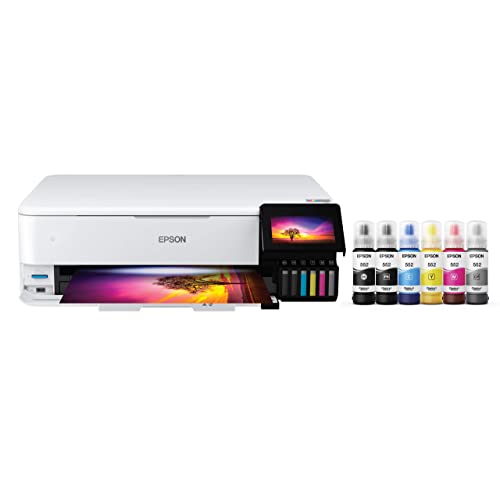
The Epson EcoTank Photo ET-8550 is the wide-format tank printer for Cricut owners who print often and dislike buying cartridges. Its refillable tanks use six-color Claria ET Premium ink and print borderless photos up to 13 by 19 inches, while a built-in scanner and copier handle documents and old photographs. Bottled ink keeps the cost of each large print low, which changes how freely you can experiment with paper and settings. It is the only all-in-one in this group, so it also replaces a separate scanner for digitizing hand-drawn designs to cut.
Specs
- 6-color Claria ET Premium ink with refillable tanks
- Borderless printing up to 13 x 19 inches
- Maximum print resolution of 5760 x 1440 dpi
- Print, copy, and scan in one machine
- 4.3-inch color touchscreen
- Wi-Fi, Ethernet, USB, and SD card connectivity
- 100-sheet input capacity
Best for: Cricut owners who print large designs every week and want low ink costs plus scanning in one machine.
Watch out for: dye-based tank ink is less fade-resistant than pigment ink, so store prints away from direct sunlight or frame them behind glass.
HP ENVY 6055e
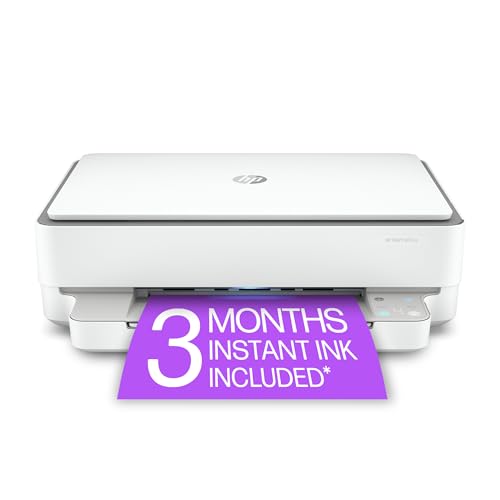
The ENVY 6055e is the simplest way to start printing for Cricut projects at home. It is a compact wireless all-in-one that prints, scans, and copies, with mobile printing through the HP Smart app so designs can go straight from a phone to the printer. It handles greeting cards, sticker sheets, and iron-on transfers for occasional projects, and its small footprint fits a shelf or a corner desk. It suits beginners and occasional crafters who want a low-commitment first machine for Print Then Cut.
Specs
- Wireless color inkjet all-in-one printer
- Print, scan, and copy functions
- Mobile printing through the HP Smart app
- Auto two-sided printing
- 3-month Instant Ink trial included with HP+
- Compact design for small desks and shelves
Best for: beginners and occasional crafters printing cards and stickers for Cricut a few times a month.
Watch out for: It uses cartridges, so heavy sticker batches will need refills more often than a tank model; also confirm the listing is for a new unit rather than a refurbished one.
Canon PIXMA PRO-200

The Canon PIXMA PRO-200 is the most approachable printer in this group for crafters who sell large, vivid color prints to cut and frame. Its eight-color dye ink system produces rich, saturated color on glossy and luster paper, and borderless printing up to 13 by 19 inches covers the frame sizes most home studios use. It is a print-only machine, so it stays focused on one job, and the included layout software helps arrange images on the page before printing. It suits sellers whose Cricut work centers on large art prints and posters.
Specs
- 8-color dye-based ink system with CLI-65 ink tanks
- Maximum print resolution of 4800 x 2400 dpi
- Borderless printing up to 13 x 19 inches, custom prints up to 13 x 39 inches
- 3.0-inch color LCD display for ink levels and maintenance
- Wi-Fi, Ethernet, and USB connectivity with mobile device printing
- 100-sheet input capacity
Best for: sellers who want vivid glossy prints up to 13 x 19 inches to cut, frame, or display.
Watch out for: it has no scanner, so digitizing hand-drawn designs for Design Space needs a separate scanner; dye ink also fades faster than pigment ink in bright light.
Which One Fits Your Situation
You Make Stickers to Sell in Small Batches
Pick the Canon PIXMA G620 if you print new sticker sheets every week and want refillable ink that keeps each batch affordable. Its six-color dye system gives bright, saturated color on glossy sticker paper, and the tank bottles last through many batches before a refill. The Canon PIXMA TS9521Ca is the backup choice when your stickers use 12 x 12 sheets, since it prints that size borderless without trimming.
You Scrapbook on 12 x 12 Pages
Pick the Canon PIXMA TS9521Ca, because it prints borderless 12 x 12 inch sheets that match your Cricut mats and scrapbook pages exactly. The touchscreen and SD card slot also let you print photos without opening a computer first. If you print scrapbook pages in high volume, pair this workflow with the Epson EcoTank Photo ET-8550 for its refillable tanks and larger 13 x 19 inch output.
You Print Large Cut Designs and Posters
Pick the Epson EcoTank Photo ET-8550 when you want the biggest printable area with the lowest ink cost per sheet, since its tanks and 13 x 19 inch borderless output suit large posters and wall art. Pick the Canon PIXMA PRO-200 when color accuracy matters more than ink cost, because its eight-color dye system renders gradients and skin tones more smoothly on glossy paper for pieces you plan to sell or exhibit.
You Craft Occasionally and Want the Simplest Setup
Pick the HP ENVY 6055e if you craft a few times a month and want a compact machine that prints from your phone through the HP Smart app. It handles cards, stickers, and iron-on sheets without a learning curve, and its small footprint fits a shared desk. Step up to the Canon PIXMA TS9521Ca only when 12 x 12 media becomes a regular part of your projects.
Common Mistakes
- Printing Print Then Cut designs on a laser printer, which can leave registration marks the Cricut sensor struggles to read.
- Using glossy sticker paper that reflects light onto the registration marks, so the machine fails to find them.
- Choosing a printer that only handles letter-size sheets, then trimming 12 x 12 designs down to fit.
- Feeding thick card stock through a curved paper path in a full stack, which causes jams and curled sheets.
- Stacking freshly printed coated sheets before the ink dries, which smears the design and the registration marks.
Frequently Asked Questions
Can I use any inkjet printer with Cricut Print Then Cut?
Most home inkjet printers work with Print Then Cut, because Design Space sends a normal print job and the Cricut machine only needs clear registration marks to read. The differences that matter are media handling, maximum sheet size, and how cleanly the ink dries on coated sticker paper. A printer that jams on thick sheets or smears ink will waste more material than a model built for craft media.
Do I need a wide-format printer for Cricut projects?
No, most Cricut projects fit on letter-size or 12 x 12 inch sheets, and a standard printer handles them well. A wide-format model earns its place when you regularly print 11 x 17 or 13 x 19 inch designs, sell large posters, or want more usable area per sheet. If your projects are mostly stickers and cards, a compact model with good thick-media handling is enough.
Why does my Cricut fail to read the registration marks?
The usual causes are glossy paper reflecting light, smudged or faint marks, and printing the design at a scaled size instead of full size. Print on matte sticker paper when the sensor struggles, keep the marks clean and printed, and check that your printer settings do not shrink the page to fit. Bright overhead light on the mat can also confuse the sensor, so shade the machine during the scan.
Can these printers handle printable vinyl and iron-on sheets?
Yes, all five printers in this guide handle printable vinyl and iron-on transfer sheets made for inkjet printers, as long as you use the inkjet version of the material and not the laser version. Feed one sheet at a time for the thickest materials, let the ink dry fully before cutting, and check the material packaging for a maximum temperature or weight limit before your first batch.
FAQ
Can I use any inkjet printer with Cricut Print Then Cut?
Do I need a wide-format printer for Cricut projects?
Why does my Cricut fail to read the registration marks?
Can these printers handle printable vinyl and iron-on sheets?
More from Amazon
Programs that pair well with the guide above. Offers and eligibility are set by Amazon and may change.
A free business account with business pricing and bulk-buying tools for work, shop or home office.
Create a business accountFree shipping on eligible items, Prime Video and more. Eligible new members can start with a free trial.
Start a Prime free trialAudiobooks and podcasts to listen to on the go. Eligible new members can start with a free trial.
Try Audible freeAd-free music streaming. Eligible new subscribers can start with a free trial.
Try Music Unlimited freeAs an Amazon Associate we earn from qualifying purchases.
Write Your Review
No reviews yet. Be the first to share your experience!