
Key takeaways
- Compare five AirPrint printers for MacBook Air, from compact mono lasers to a refillable tank all-in-one, and pick the right fit for documents and color.
A MacBook Air pairs best with a printer that stays out of the way until you need it. The decision is not about speed or a long feature list; it is about a printer that wakes from sleep, accepts a job from macOS without a driver hunt, and fits the desk or shelf you have. Wireless printing matters more than anything else here, because a MacBook Air has no room for cable clutter, and a printer that needs a wired connection fights the point of a thin laptop.
This guide is for students, remote workers, and home users who print from a MacBook Air and want the setup to just work. It suits travelers and small-space dwellers who need a compact machine that shares nicely with an iPhone or iPad. Each model below was picked from the name and specifications shown on its Amazon listing, with AirPrint support, wireless connectivity, and a footprint that suits a MacBook Air setup as the key factors.
Quick Picks
As an Amazon Associate we earn from qualifying purchases.
| Product | Best for | Key spec from title |
|---|---|---|
| HP LaserJet M110w | Small-desk black-and-white documents | Wireless black-and-white printer with mobile printing |
| Brother HL-L2460DW | Heavy document volume with duplex | Compact mono laser with duplex and mobile printing |
| Canon PIXMA TR4720 | Printing, scanning, copying, and faxing at home | All-in-one wireless with auto document feeder |
| Brother MFC-J1010DW | Color documents and photos on a small desk | Color inkjet all-in-one, duplex, 1.8-inch color display |
| Epson EcoTank ET-2850 | Frequent color printing without cartridges | Cartridge-free Supertank all-in-one with auto duplex |
How to Choose
AirPrint Support and macOS Setup
Start with AirPrint, because it is the feature that makes a printer feel native to a MacBook Air. An AirPrint printer appears in the macOS print dialog without extra software, so you can print a boarding pass or a work document minutes after unboxing. Check the Amazon listing for AirPrint in the connectivity details before you buy, and confirm the printer also works with the current macOS version your Air runs. Brand apps such as HP Smart, Canon PRINT, Brother Mobile Connect, and Epson Smart Panel add scanning and supply checks, but they should be a bonus, never a requirement for basic printing.
Size and Footprint for a Small Desk
A MacBook Air setup is usually a small desk, a kitchen table, or a dorm room corner, so measure before you fall for a feature list. A compact mono laser tucks beside a laptop stand, while a full all-in-one needs room for its scanner lid to open and its output tray to extend. Check the width and depth in the Amazon listing and compare them with your free surface, leaving space for paper to exit. If you move between rooms or carry the printer to a shared space, weight matters too, and a lighter machine you can lift with one hand wins over a heavier one with extra trays.
Laser, Inkjet, or Tank for Your Volume
Match the print engine to how often you print, because that choice decides your running costs and your maintenance. A mono laser suits owners who print documents a few times a week, since toner does not dry out during quiet months and pages come out crisp. An inkjet all-in-one fits lighter use with occasional color, such as school forms and photos, but its cartridges can clog if the machine sits idle for weeks. A refillable tank model suits frequent color printing, since its bottles hold far more ink than standard cartridges and refills are simple.
Scanning, Copying, and Two-Sided Printing
Think about what leaves the printer besides plain pages. If you scan school forms, receipts, or signed contracts, an all-in-one with a flatbed scanner and an automatic document feeder saves real time, because it feeds a stack while you work on your MacBook Air. Duplex printing matters just as much for reports and study notes, cutting paper use in half without extra effort. A print-only laser skips these extras to stay small and simple, which is the right trade when you only need sharp documents and your phone already handles the occasional scan.
The 5 Best Options
HP LaserJet M110w
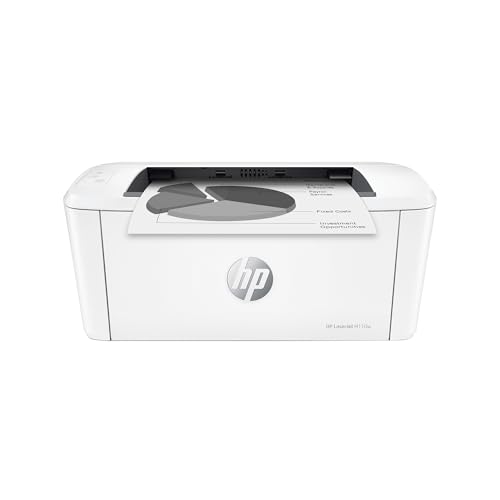
The HP LaserJet M110w is the easiest fit for a MacBook Air desk where space is tight and documents are the main job. It is one of the smallest mono lasers you can buy, so it sits beside a laptop without crowding the keyboard or the trackpad area. Wireless setup runs through the HP Smart app, and AirPrint handles day-to-day jobs straight from macOS, which means no driver disc and no cable draped across the desk. Text comes out sharp and fast, and toner stays ready during quiet weeks, so it suits students and remote workers who print essays, invoices, and forms in short bursts.
Specs
- Wireless monochrome laser printer, print only
- Print speed up to 21 ppm in black
- 150-sheet input tray
- Compact design: 13.6 x 7.5 x 6.3 inches
- Wi-Fi with self-reset and HP Smart app
- Uses Original HP 141A black toner cartridge
- Energy-efficiency certified
Best for: Students and remote workers who print black-and-white documents from a small desk.
Watch out for: It prints black and white only and has no scanner, so check that you do not need color or copying before you buy.
Brother HL-L2460DW

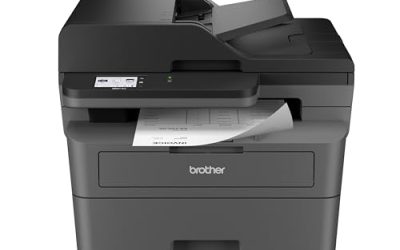
The Brother HL-L2460DW is the pick when your MacBook Air prints a steady stream of documents and you want duplex without thinking about it. It prints black-and-white pages quickly, flips them over automatically, and holds a full 250-sheet tray, so long reports and study packets run without constant refills. Dual-band Wi-Fi and AirPrint keep it cable-free beside a MacBook Air, while USB and Ethernet stay available for a shared desk. It is larger than the HP M110w, but the extra speed and automatic two-sided printing make it the stronger choice for a busy home office.
Specs
- Wireless compact monochrome laser printer with automatic duplex printing
- Print speed up to 36 ppm in black
- 250-sheet paper tray
- Dual-band wireless, Ethernet, Wi-Fi Direct, and USB connectivity
- Mobile printing with AirPrint and Brother Mobile Connect app
- Energy-efficiency certified and EPEAT Silver certified
Best for: Home offices that print long black-and-white documents and want automatic two-sided printing.
Watch out for: It is a print-only mono laser, so confirm you do not need color printing, scanning, or copying.
Canon PIXMA TR4720

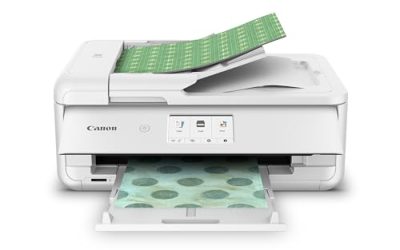
The Canon PIXMA TR4720 is the all-in-one for a MacBook Air owner who wants one machine for printing, scanning, copying, and faxing without a large footprint. Its automatic document feeder pulls in multi-page forms while you keep working, and AirPrint plus the Canon PRINT app cover wireless jobs from macOS and iOS alike. Color output handles school projects and everyday photos well enough for home use, and the compact body fits a shelf or a small desk. It is the most versatile machine in this list for the least desk space, which makes it a strong first printer for a student household.
Specs
- Wireless all-in-one inkjet printer: print, copy, scan, and fax
- Auto document feeder for multi-page scanning and copying
- Mobile printing with AirPrint and Canon PRINT app
- Uses PG-275 black and CL-276 color ink cartridges
- Compact design for home use
Best for: Student households that need printing, scanning, copying, and faxing from one compact machine.
Watch out for: Ink cartridges can dry out if the printer sits unused for weeks, so check that you print regularly enough to keep the nozzles clear.
Brother MFC-J1010DW

The Brother MFC-J1010DW suits a MacBook Air owner who prints in color but still wants a machine that fits a small desk. It handles print, copy, scan, and fax duties, prints on both sides automatically, and shows status on a 1.8-inch color display, so common tasks need no trip to a computer screen. AirPrint and Wi-Fi Direct cover wireless jobs from macOS and iPhone, while the compact body leaves room for the laptop itself. Color documents, school handouts, and the occasional photo all come out clean, which makes it a balanced all-rounder for a family desk.
Specs
- Wireless color inkjet all-in-one: print, copy, scan, and fax
- Automatic duplex printing
- 1.8-inch color display with mobile and cloud printing
- Print speed up to 17 ppm in black and 9.5 ppm in color
- Wi-Fi, Wi-Fi Direct, and USB connectivity
- Page Gauge ink monitoring
Best for: Families who want color printing, scanning, and copying from one compact desk machine.
Watch out for: It uses ink cartridges, so confirm you print often enough to avoid dried nozzles, and note the paper tray is smaller than a laser tray.
Epson EcoTank ET-2850

The Epson EcoTank ET-2850 is the choice for a MacBook Air household that prints color often and is tired of swapping small cartridges. Its refillable ink tanks hold far more ink than standard cartridges, and the included set of Epson 502 bottles keeps the machine going through school projects and photos. Wireless printing works with AirPrint from macOS, and the flatbed scanner plus color display cover copying and scanning without extra gear. It also prints on both sides automatically, which saves paper on long school and work documents. It is wider than a mono laser, but for heavy color use it is the most convenient machine here.
Specs
- Wireless color all-in-one cartridge-free Supertank printer with scan, copy, and auto 2-sided printing
- Refillable ink tanks with included Epson 502 ink bottles
- 1.44-inch color display and wireless printing with AirPrint
- Print speed up to 10.5 ppm in black and 5.0 ppm in color
- 100-sheet paper capacity
Best for: Households that print color often and want to refill ink bottles instead of swapping cartridges.
Watch out for: It is wider than the mono lasers here, so measure your desk first, confirm you have room for the scanner lid to open fully, and check that the black color option is in stock before ordering, since stock varies by color.
Which One Fits Your Situation
You Mostly Print Black-and-White Documents
Pick the HP LaserJet M110w if your desk is small and your jobs are short, since it takes up the least space and toner stays ready between uses. Choose the Brother HL-L2460DW instead when you print long reports or study packets, because its automatic duplex and 250-sheet tray handle volume without constant refills. Either way, skip the inkjets, since a mono laser suits plain documents better.
You Need to Scan and Copy at Home
Choose the Canon PIXMA TR4720 when scanning multi-page forms matters, since its automatic document feeder does the work while you stay on your MacBook Air. Pick the Brother MFC-J1010DW if you also want color documents and a color display for quick copies. Both cover fax as well, so the deciding factor is whether you value the feeder or the color output more.
You Print Color Often and Hate Cartridge Swaps
Go with the Epson EcoTank ET-2850. Its refillable tanks hold far more ink than standard cartridges, so school projects, photos, and craft prints run without frequent swaps. The flatbed scanner covers copying too, which makes it the simplest single machine for a busy household that prints in color every week, and AirPrint keeps it wireless beside a MacBook Air.
You Work from a Tiny Desk or Dorm Corner
Pick the HP LaserJet M110w for the smallest footprint in this list, since it tucks beside a laptop stand and prints sharp documents without fuss. If you also need scanning, step up to the Canon PIXMA TR4720, which stays compact for an all-in-one. Measure your surface first either way, and leave room for the output tray and the scanner lid to open.
Common Mistakes
- Buying a printer without AirPrint and then fighting driver installs on macOS.
- Assuming the printer connects to a MacBook Air over USB-C out of the box; most printers use USB-B or Wi-Fi, so plan for wireless or an adapter.
- Choosing an inkjet when you print once a month, then finding dried nozzles when you need it.
- Picking a photo-first printer when nearly every job is a black-and-white document.
- Forgetting to measure the desk, then finding the scanner lid or output tray has no room to open.
Frequently Asked Questions
Do these printers work with a MacBook Air without installing drivers?
Yes, when you use AirPrint. All five models support AirPrint, so macOS finds them on the same Wi-Fi network and prints without extra software. Keep the printer and the MacBook Air on the same network, open the print dialog, and select the printer. Brand apps add scanning and supply checks, but basic printing needs no install.
Can I print from my iPhone to the same printer?
Yes. The same AirPrint support that serves your MacBook Air also serves an iPhone or iPad on the same Wi-Fi network. Open the share sheet in any app, tap Print, and choose the printer. That shared setup is handy in a household where one printer serves a laptop, a phone, and a tablet.
Do I need a USB-C adapter to connect a printer to a MacBook Air?
Not if you print over Wi-Fi, which is the simplest route for every model in this guide. A wired connection is different: most printers use a USB-B port and ship with a USB-A cable or none at all, so a direct cable link to a MacBook Air needs a USB-C adapter or a USB-C to USB-B cable. Set up Wi-Fi first and keep the cable as a backup.
Should I choose a laser or an inkjet if I print rarely?
Choose a mono laser such as the HP LaserJet M110w or the Brother HL-L2460DW. Toner is a dry powder, so it does not dry out during quiet months, and the printer is ready the moment you need it. An inkjet can clog when it sits idle for weeks, which means a rare printer should be a laser unless you truly need color.
FAQ
Do these printers work with a MacBook Air without installing drivers?
Can I print from my iPhone to the same printer?
Do I need a USB-C adapter to connect a printer to a MacBook Air?
Should I choose a laser or an inkjet if I print rarely?
More from Amazon
Programs that pair well with the guide above. Offers and eligibility are set by Amazon and may change.
A free business account with business pricing and bulk-buying tools for work, shop or home office.
Create a business accountFree shipping on eligible items, Prime Video and more. Eligible new members can start with a free trial.
Start a Prime free trialAudiobooks and podcasts to listen to on the go. Eligible new members can start with a free trial.
Try Audible freeAd-free music streaming. Eligible new subscribers can start with a free trial.
Try Music Unlimited freeAs an Amazon Associate we earn from qualifying purchases.

Write Your Review
No reviews yet. Be the first to share your experience!